

Love baking hot cross buns? If you come across a requirement where you need to quickly copy and paste but preserve the beautiful format of a rich text area then this article is for you.
What cake to make: my use case is to quickly render the rich text format which would be returned from an OpenAI callout guiding it to rewrite a paragraph which is a Work Item description field in our project management app to make it clearer, directive, more succinct and precise so that the assigned resource can take it away and come back with valuable outcome and expected deliverables.
Here is how it looks like, before and after:
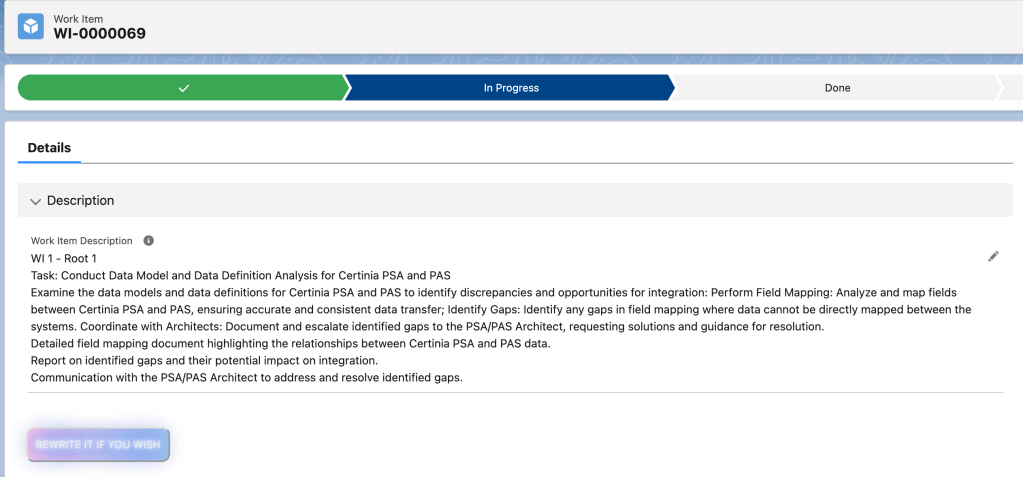

After hitting View Suggested Rewrite button, you’ll see the markdown rendered gracefully in the pre-defined style as a result of the guidance from the API call you made in the previous step. However, the rich text editor of the Salesforce text area still doesn’t like it, as it doesn’t support rendering either markdown or html tags.
You may stop here looking back and smile triumphantly and let user manually copy the rendered text to put into the WI description field themselves in despair, but we – as a cool developer (as we may usually get the illusion that we are lol) – should set a higher standard by just taking it one step further, get it auto copied and put in the right place.

Now, just hit the Use Suggested Text magic button.
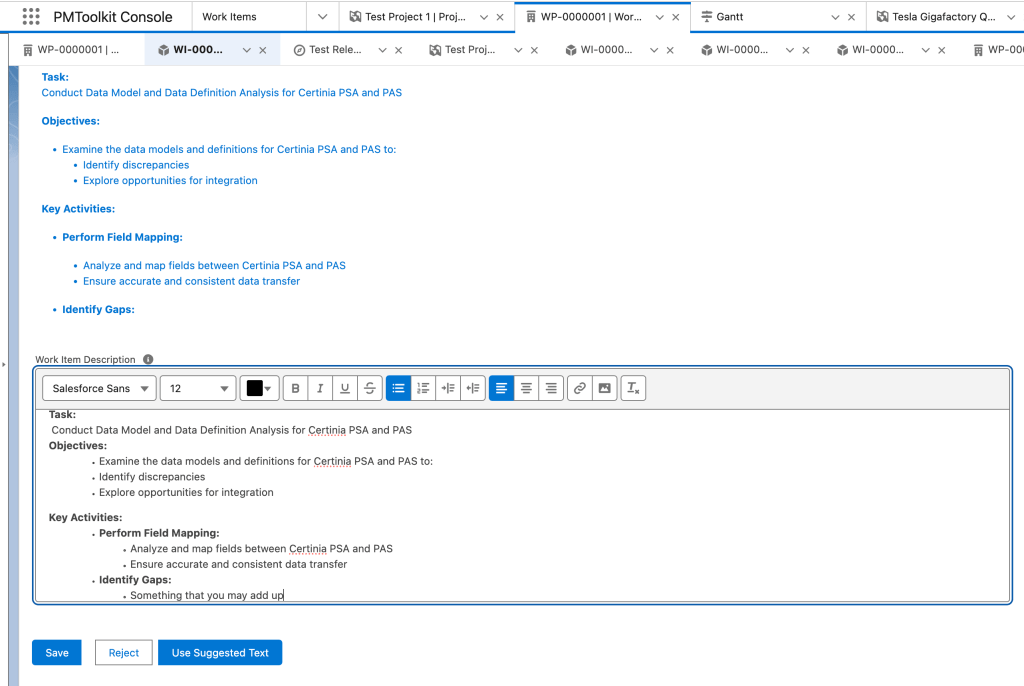
Voila! The description was auto copied and placed in the right one. You can make some minor modification regarding to the formatting or add up some of your own words.
Final outcome may look like this (another Work Item). Looks neat and tidy huh?

30s of glance here: https://www.loom.com/share/79772ed2ea0b4937a26bac7b2ebf68dc
Ingredients:
- Showdown js https://showdownjs.com/
- marked js https://marked.js.org/
- Clipboard API: https://w3c.github.io/clipboard-apis/#clipboard-event-copy
Steps:
- Setting libs up ready to use by uploading the static resources for marked js and showdown js (you can find them in the static resource folder)
- Building main component, let’s call it workItemRewriter, or you can call it a GrammarSheriff if you wish.
- Building sub component 1 – the markdown editor. This component will listen to the returned markdown rewritten passages from the API call and pass it to the markdown preview to render the markdown to show a friendly styled text.
- Building sub component 1’s sub component 2 – the markdown preview. This component is embedded inside the markdown editor component, so it doesn’t need to be exposed to lightning pages or app page.
- Putting them all together: embed the markdown editor component into the main one – the workItemRewritter under a conditional rendering template, so that whenever the paraphrased text is returned it should pass this text along the markdown editor, then in turns to the markdown preview for rendering. And yes, we need the parent-child communication here. You can refer to the trailhead Recipe or here to see how it works.
Source code: https://drive.google.com/drive/folders/1-Nnx4kgy8eNrCc5suLhugKZv6McjU5ue?usp=sharing
Remember to replace your API key in line #12 in the WorkItemRewriterController class:
req.setHeader('Authorization', 'Bearer YOUR-OPENAI-APIKEY-HERE');Also remember to add the openai api site (https://api.openai.com) in your org Remote Site Settings.
Secret sauce:
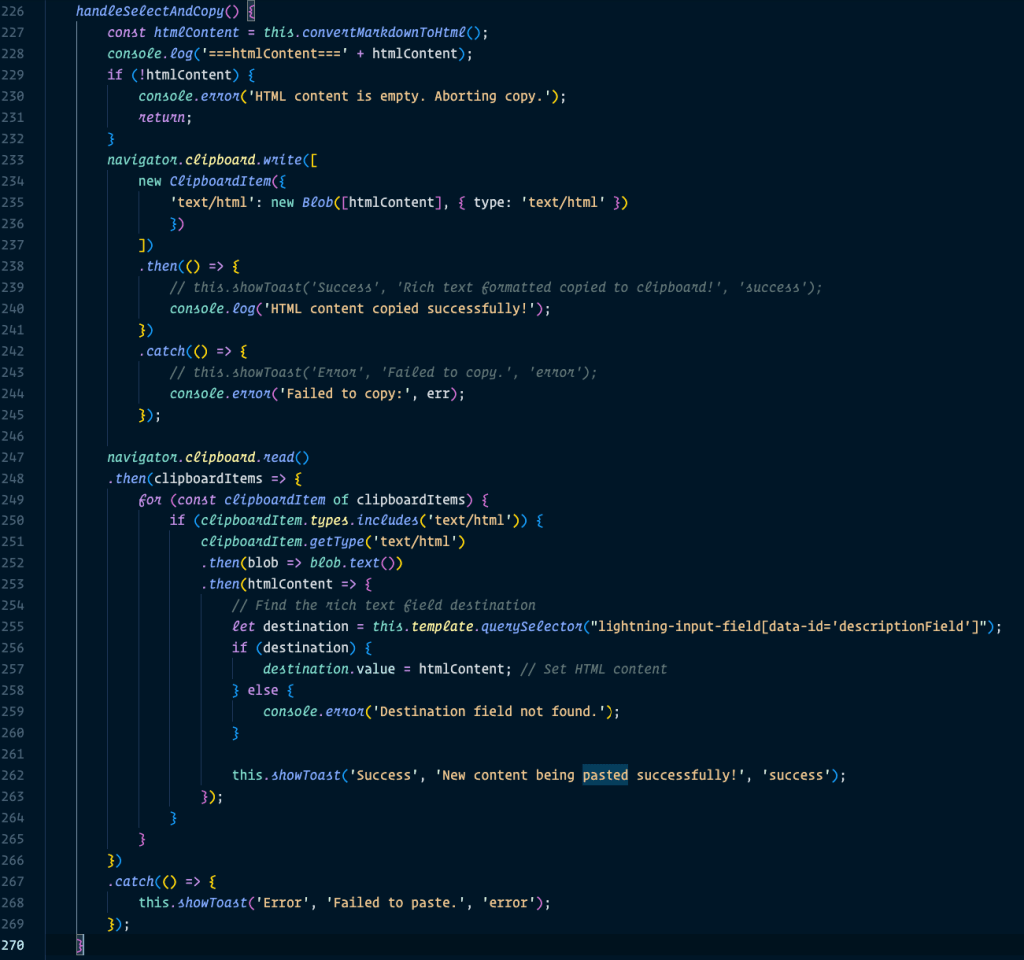
Understanding 1. that we need to convert Markdown text to Html and 2. how the new Clipboard API write (copy) and read (paste) works (deprecated method was document.execCommand(“copy”);)
That’s it! Hopefully it saves you some time. Enjoy baking!
 Trekking with SF