

I’ve been tasked recently with a minor requirements around multiple rules violation selection for a citizen to apply and update their current ethical point, as such their upfront points will be deducted based on the rules they violated. As a result, they would be banned from using some services, such as complaining about police tic.
So stay tuned, you’re being watched! Be careful with your social behaviors, man!
Given: a standard Case object, a custom object called Rules & Penalties to store all the rules and penalties (points to be deducted) if violated, a Case Rules & Penalties object to record what Rules you broke against a specific Case, which is a citizen’s case. A citizen may have multiple cases. Depending on the content reported on the case and its severity, a citizen may be fined or not. A trigger is already existing, to recalculate and update the number of Total Penalty Points of a citizen after (s)he’s been added/removed one or more Case Rules & Penalties.

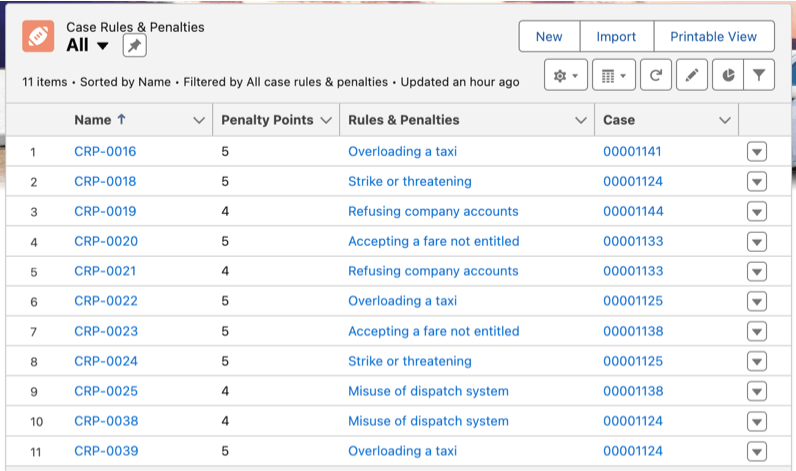


Problem: Make adding a new Case Rules & Penalties simpler in the sense that multiple Rules & Penalties can be added all at once, instead of clicking on New from the Case’s Case Rules & Penalties related list to create each Case Rules & Penalties one at a time.
Solution:

- Key takeaways #1: for screen flow, to pass the current recordId of the object to the flow, {!$Flow.CurrentRecord} might not working. You need to use recordId variable instead.
Example: you want the screen flow to show up when user are on a Case record page, let’s create a variable called recordId and pass it to the Get record element


- Key takeaways #2: if you are creating quick action button for Case object, don’t surprise if you can’t seem to see the button you created even when you did properly adding it to the page layout, if the Feed Tracking in Chatter is enabled for that Case object. It needs to be disabled in order to show the custom button. It would save you at least 1 hour banging your head into the wall without knowing any reason. Also you cannot name your button as what you want it, but there are only limited choices to label the custom quick action button on the Case object.

Result:
Before:
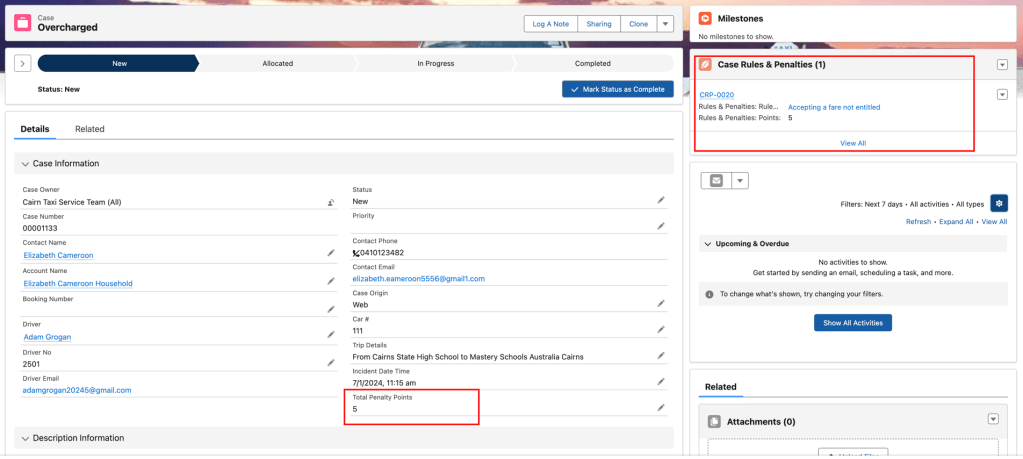
After:


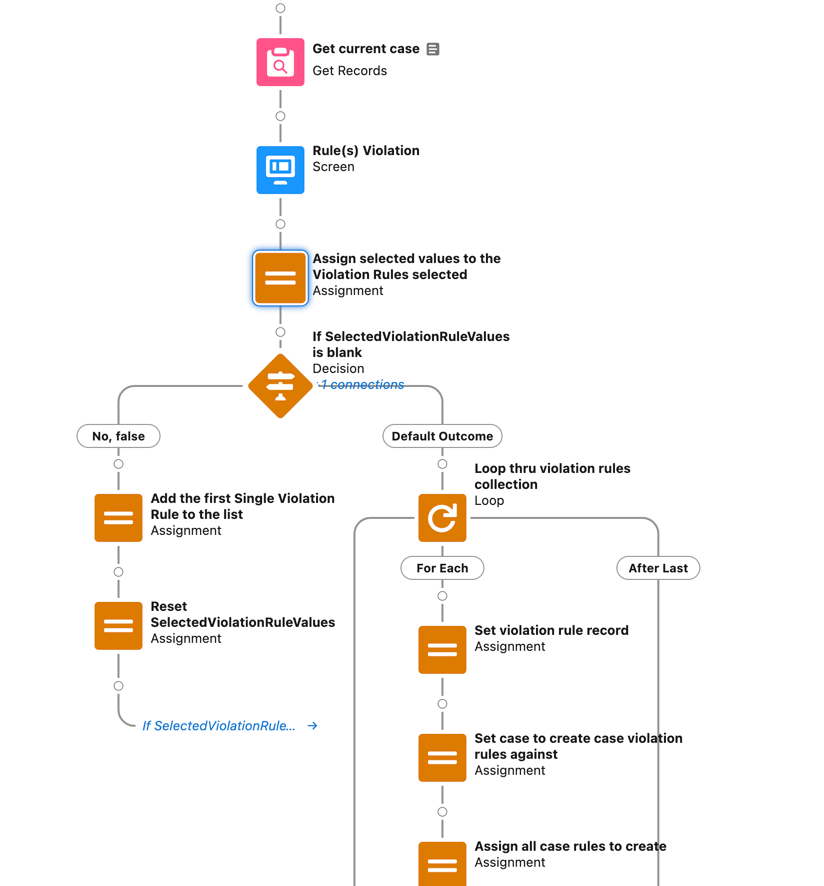
The whole flow:
Step 1: Get the current Case recordId

Step 2: Add a screen flow Rule(s) Violation with a checkbox group and a record choice set. Read more on record choice set and other types of choices in the below Ref. section

Step 3: Assign selected values to Violation Rules selected
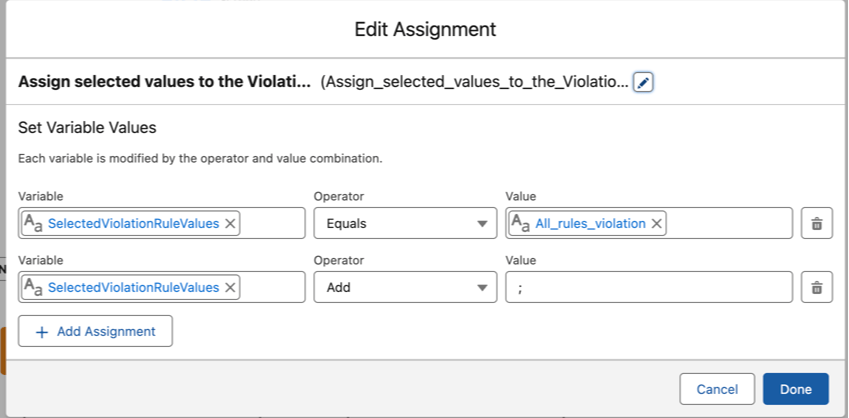
Variable: SelectedViolationRuleValues

Step 4: A decision node to check if SelectedViolationRuleValues is blank

Ref.
Salesforce has an article here: https://help.salesforce.com/s/articleView?id=000393459&type=1
https://help.salesforce.com/s/articleView?language=en_US&id=sf.actions_in_lex.htm&type=5
 Trekking with SF